
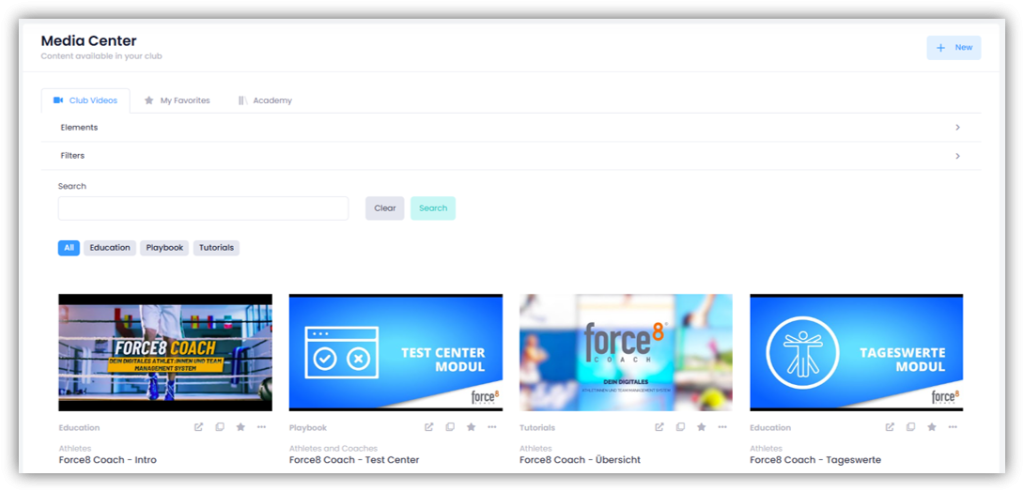
Under MEDIA – VIDEOS, you can provide your athletes and coaches with video links and thus create your own video library directly in Force8 Coach.
Add video
Click on “+ New” in the top right corner. Enter the name of the video, a description, and the link, and select the type of video. You can also add keywords to the video so that you can find it more quickly later. Click on “Next”.
In the next window, select the sport and an FTEM level. You can also choose whether you want to assign the video to a team, a group, or an age group. In this case, you must also select whether it should only be accessible to athletes and/or coaches. You can also assign the video to a specific athlete or coach. Click on “Next”.
In the last step, you can assign one or more elements to the video.
Favorite videos
If you click on the star next to a video, it will be displayed under “My Favorites”. This gives you faster access to your favorite videos.
Edit or delete videos
To edit or delete a video, click on the “three dots” and select either “Edit” or “Delete”.
Academy
Here you will find videos that your federation makes available to all clubs. As a coach, you cannot create, edit, or delete Academy videos. The Academy will only be displayed if videos are available.