
The Family Connect module allows you to assign athletes from your club to a family member. The family member gains access to the assigned athletes, can see their schedules in a clear overview, and can register and deregister them for training sessions.
This module is ideal for families with younger children who do not yet need their own account. In addition, the module allows athletes to be assigned to a family member even if they do not have their own email address.
Create family members
Under COMMUNICATION – FAMILY CONNECT, you can see all your assigned athletes in the “Athletes” tab.
Go to the “Members” tab and click on “Active Members” to create new family members, to whom you can then assign athletes.
Click on “+ New” and enter the first and last name as well as an email address in the window that appears. Optionally, you can assign a category to the family member. You must first create this by clicking on the “Categories” button and entering your desired categories there (e.g., ‘Father’ or “Mother”).
Under Athletes, select all the athletes you want to assign to this family member. If you check the box next to “Send activation email(s)”, an activation email will be sent to the family member immediately. However, you can also send this email at a later time.
Add/remove athletes
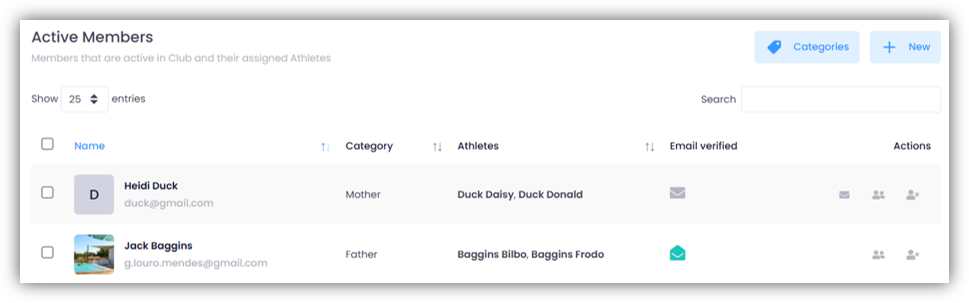
In the “Active Members” list, you can see all the family members you have created. The “Athletes” column shows all athletes who were already assigned to this family member when it was created. If you click on the “Person icon” in the “Actions” column, you can add or remove athletes from this family member at a later date.
Send activation email
By clicking on the “envelope icon” in the “Actions” column, you can send the activation email if you have not already done during registration. A green envelope in the “Email verified” column indicates that this family member has successfully logged in.
Deactivate family members
Click on the “Person-X icon” in the “Actions” column to set this family member to inactive. No information about this member will be lost. The inactive family member will then be listed in the “Inactive Members” tab. Inactive members can be reactivated at any time by clicking on the “Person-✓ icon”.
A member listed under “Inactive Members” can be permanently deleted if necessary by clicking on the “trash can icon”. This will completely remove the member from the club.