
Click on your name in the top right corner and then on “Family Profile”. In the overview, you will see all the athletes assigned to you. Click on an athlete’s name to go to that athlete’s profile.
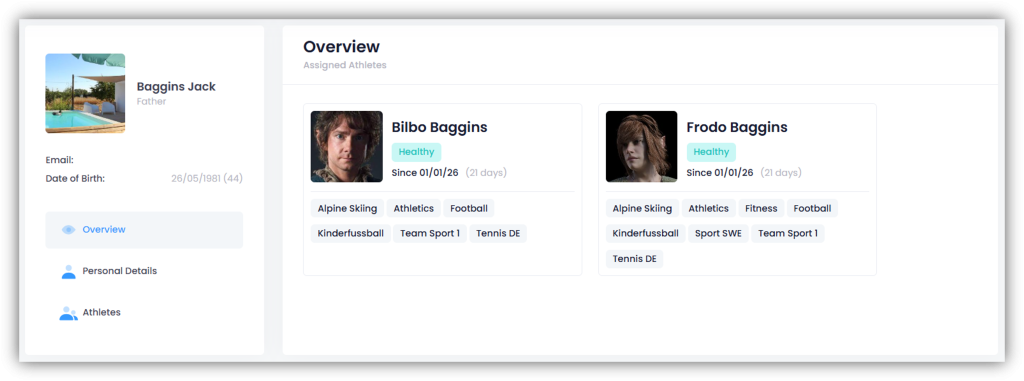
On the left, you will now see various menu items, which we will briefly describe in this article.
Overview
Here you have an overview of all the events for which the selected athlete has been scheduled. Using the “Activities”, “Sessions” and “Competitions” buttons at the top, you can also choose to display only certain events.
You can also view the calendar as a weekly or daily overview.
Status
Here you can enter the athlete’s global status – e.g., whether they are healthy, injured, sick, on vacation, etc. Users who have access to this data will thus remain up to date.
Scroll down and click on the “+Add New Status” field under “All Status” on the right to enter a new status. Select the appropriate status from the drop-down menu under “Status”, enter the dates from when to when, and add a note if necessary.
There is also an option to “Automatically Excuse from Events”. If you activate this option, the selected status will affect future or already planned trainings. If the coach plans a training within the period you specified and the global status is not set to “Healthy”, the event status for this training will automatically be set to “Excused”.
Finally, click on “Save”.
If you want to edit or delete a status, click on the “pencil icon” on the right-hand side of the line for the corresponding status to make adjustments, or on the “trash can icon” to delete the status.
Personal Details
Here you can enter or edit this athlete’s personal details, contact information, and sports-specific details. You can also upload a profile picture here. Click on the “pencil icon” in the top right-hand corner of the photo placeholder, select a photo, and click on “Save”.
If necessary, you can also enter or edit bank details, social security number, insurance details, and doctor’s contact information.
Club Details / Federation Details
If your club or federation works with the “Fields Configurator” module, you can fill in the fields created specifically for your club under these tabs or view information provided by the coach.
Height/Weight/Heart Rate
Here you can enter the height and weight. Simply click on “+ New”. You can also enter or edit the maximum heart rate. When you enter a maximum heart rate, the heart rate zones are calculated automatically. However, you can also adjust these values yourself.
Other Contacts
Here you can enter or edit the parents’ contact details.
Integrations
You can find out how athletes can connect with an external provider to add heart rate data to a workout in the article Athlete Profile (Integrations).
Privacy
Here you can see which users have access to this athlete’s data. It shows in detail which user can access which modules.