
Click on ATHLETES in the menu on the left to go to the athlete overview.
My Athletes
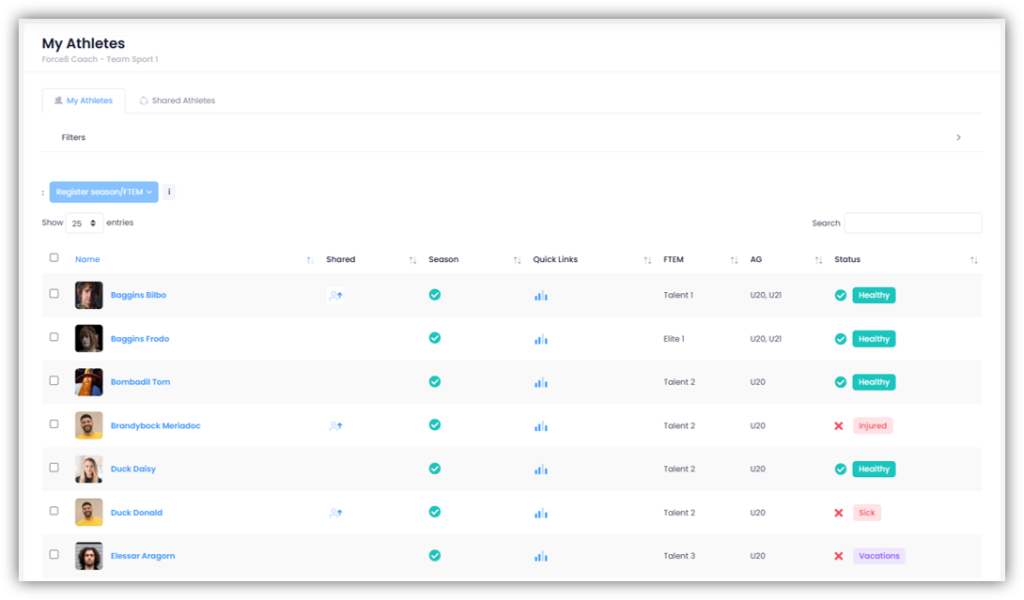
The “My Athletes” tab shows you all the athletes assigned to you.
You can view the following information here:
- In the “Shared” column, a symbol indicates that you have shared this athlete with another coach. Clicking on the symbol shows you with whom you are sharing the athlete and for how long the sharing is valid.
- In the “Season” column, a green check mark indicates that the athlete is activated for the current season. A red cross means that the athlete has not yet been activated and does not have access to this season in their profile. You can find out how to activate an athlete for a season in the article Set up a new season correctly.
- In the “Quick Links” column, you’ll see a bunch of direct links. Right now, there’s a direct link to the athlete’s analyses.
- The “FTEM” column shows the athlete’s current FTEM level.
- The “AG” column shows the age groups to which the athlete is assigned.
- The “Status” column shows the athlete’s current global status.
Shared Athletes
The “Shared Athletes” tab shows you all the athletes you currently share with another coach. You can also see which coach you share each athlete with and the corresponding time period.
If you click on “+ New”, you can select one or more athletes and specify which coaches you want to share them with. Select the desired time period at the top and then click on “Assign”.
Athlete Profile
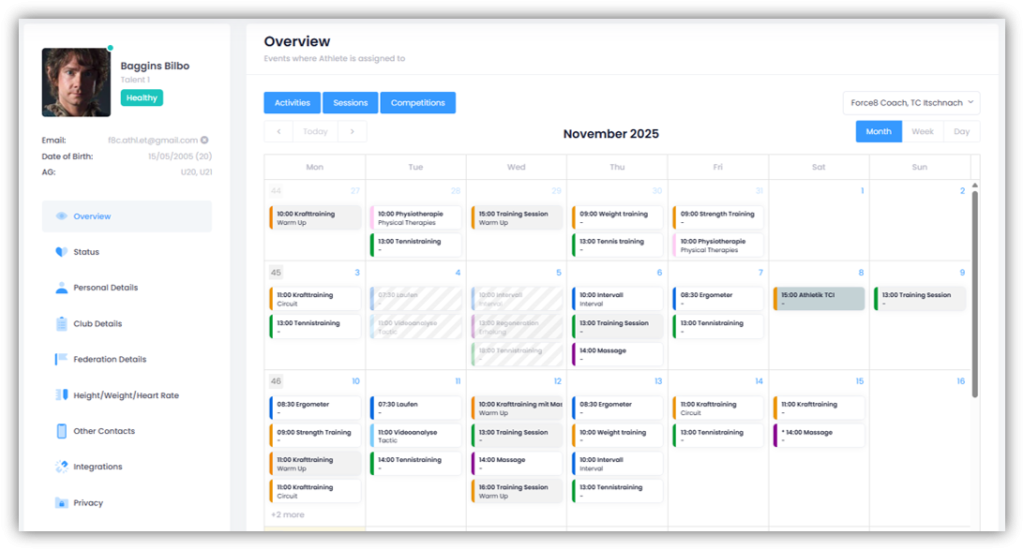
Clicking on an athlete’s name will take you to their athlete profile. On the left-hand side, you will find various tabs with different information about this athlete.
The “Overview” tab shows all of the athlete’s events in a monthly calendar view. Click on a date to go directly to the details. Use the “Activities”, “Sessions” and “Competitions” buttons to filter the display and show only specific events. You can also view the calendar in a weekly or daily overview.
Display of multiple clubs
If the athlete is active in several clubs and has allowed you to view their multi-club planning in their privacy settings, you can show or hide the planned events for all of their clubs in the calendar. Simply select the desired clubs from the selection. The events for other clubs are highlighted in dark gray.
You can perform the following additional actions in the athlete profile: