Under HEALTH – ATHLETE SCREENING, you can monitor the physical condition and injuries of your athletes using independently created batteries. This module is ideal for physiotherapists, among others.
Create tests
Under ATHLETE SCREENING – TESTS you can create as many tests as you like.
Click on “+ New” and enter a name for the test and, if desired, a description in the window that appears. You can also upload an image. Select the “Use numerical value” checkbox if you want an input (e.g. pain scale or degree of motion) to be entered when the test is carried out. Then click on “Next”.
Now add individual criteria that are checked within this test. Enter the name of the criterion and which “body part” is involved in this criterion. You must also enter the “body function” that is being tested. You can also select several “body functions”.

Set up batteries
Under ATHLETE SCREENING – BATTERIES, you can now create a battery from the individual tests.
Click on “+ New” and enter a name for the battery and, if desired, a description in the window that appears.
Click on the name of the battery and go to the “Tests” tab. Click on “+ Add” to add individual tests to this battery. You can add as many tests as you want to a battery.

Add entries
Click on the name of a battery to which you want to add athlete entries. Go to the “Entries” tab and click on “+ Run”. Select a date, an observer and an athlete and click on “Run” at the bottom.
All tests of this battery will be listed. Click on the “arrow symbol” to open a test and answer the criteria.
You also have the option to exclude individual tests from this battery for individual athletes. To do this, move the “Exclude” slider to the side for the desired test. This test will be deleted and not evaluated for this athlete.
With the “Exclude Pending” button at the top right, you can mark all tests that have not yet been completed as excluded at once.
Add attachments
If you switch to the “Attachments” tab, you can add additional files to this athlete’s screening. To do this, simply click on “+ New”. Enter a name, upload the desired file, and then click on “Save”. The attached files can also be viewed by the athletes.
View results
There are two ways to view the results of individual athletes:
Click on the name of a battery and switch to the “Entries” tab. There, click on the name of an athlete and then on the “Results” tab.
Via ATHLETE SCREENING – ALL ENTRIES you get an overview of all athletes. For details, click on an athlete and switch to the “Results” tab.
In the “Results” tab, you will see all body parts that have been marked for a criterion as well as any numerical values entered for the respective tests.
The test results are also broken down into the individual body parts and body functions. For each body part, you can see how many criteria were tested and how many of them were marked when the test was completed. The higher the number of marked tests, the higher the percentage displayed.

You also have the option of adding specific notes to the results of this battery. At the bottom you will see all tests for which at least one criterion has been marked.
Send recommendations
Based on the results of the athlete screening, you can compile targeted activities as recommendations for the athlete and send them to the relevant persons. To do this, go to the “Recommendations” tab.
Under “Notes”, you can use “+ Add” to enter additional explanations and information about your recommendation. In the “Activities” section below, you can add recommended activities. To do this, click “+ Add” to open an overview of all available activities. You can use the filter to search specifically for favorites or club activities. Select the desired activity by clicking the “+ icon”, enter the recommended total duration, and confirm your entry by clicking “Save”. You can add as many activities as you like to your recommendation.
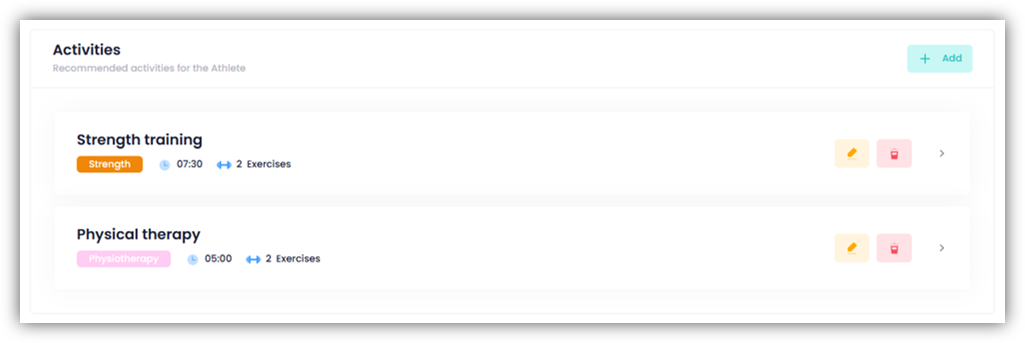
Once you’ve finished compiling your recommendation, you can send it. To do so, click “Send” in the “Recommendation Status” section at the top right. The athlete is already selected automatically. You also have the option to send the recommendation to coaches by selecting the desired individuals from the list. If you enable the “Copy Activities” option, the activities in the recommendation will be added to the templates under “My Activities” for both the athlete and the selected coaches.
Recipients will receive a notification about your recommendation via the “bell icon” at the top of the screen.
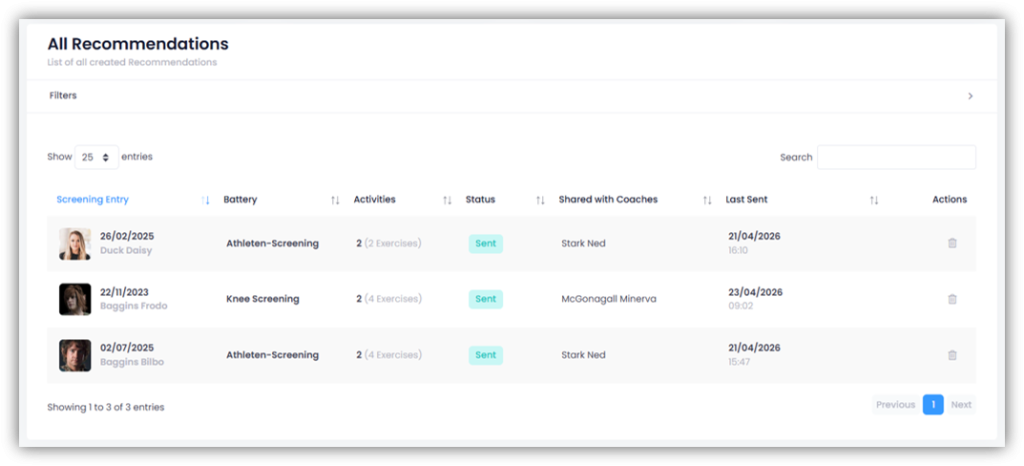
All created recommendations are listed under ATHLETE SCREENING – RECOMMENDATIONS. You can tell whether a recommendation has already been sent by checking its status.