
To access the list view, click on the “List View” button in the training planning under TRAINING – PLANNING.
In addition to many filter functions, the list view also offers you the option of reproducing individual training sessions or copying several training sessions together.
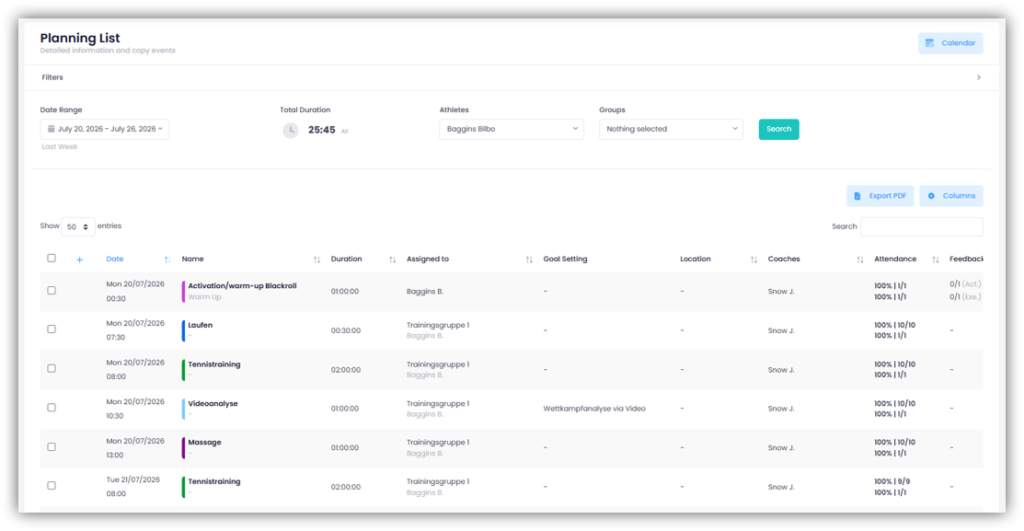
Filter functions & column selection
You can use a variety of different filters to filter your trainings. For example, you can only display trainings at a specific location or search for trainings that deal with a specific type. It is also possible to select specific athletes or training groups.
As well as the default columns, there are other columns available. Click on ‘Columns’ and select the optional columns you’d like to display.
Reproduce training
If you click on the first symbol in the “Actions” column, you can reproduce this activity or session. Enter a start date, the number of repetitions and the desired interval and click on “Replicate”. The activity or session will then be reproduced as often as you have specified. All athletes, coaches and their respective status will be copied.
You can also switch to the “Custom Dates” tab and enter multiple dates for which you want to reproduce the training.
Copy training
Click on the “+ symbol” in the “Actions” column in the row of an activity or session to copy this training. Enter a date and switch to the “Assign to” tab. Here you can choose whether you want to assign this training to the same athletes and coaches as the original training. You can also select the desired event status of the athletes.
If you select the “New Assign” option, you can assign individual athletes or a specific training group to this training. You can also choose whether you as a coach and the existing coaches should be added to the copied training or not.

Copy multiple trainings
You can also select several trainings (activities and sessions) at the same time. Simply tick all the trainings you want and click on the “+ symbol” below the list. Select the start date for the copy. The time and the time interval between all selected trainings are retained. In the preview you can see on which days the workouts will be copied. In the “Assign to” tab, you can decide whether you want to assign the trainings to the same athletes and coaches as the original trainings or to new athletes/coaches/training groups.

Create a PDF
You can also export the list you have created as a PDF. To do this, click on ‘Export PDF’. In the window that appears, you can select which columns should be included in the PDF. The default columns are always exported. For the optional columns, you can choose which ones should also be included in the PDF. Finally, click on ‘Export’.