
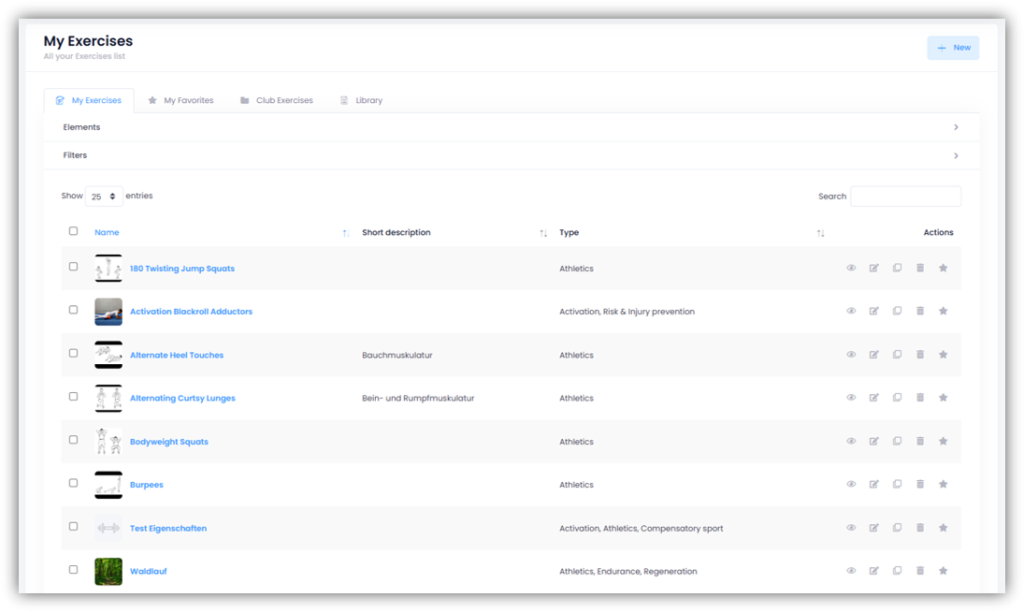
Under TRAINING – TEMPLATES – EXERCISES you have four different tabs at the top.
My Exercises
Add exercise
Click “+ New” on the right and give the exercise a name. Optionally, you can also add a description and define a goal. You can also adjust the difficulty level to make the exercise easier or more challenging, as well as define the teaching points.
In addition, you can add a video link, images, and a PDF for this exercise. You can upload up to five images per exercise. The order of the images can be adjusted using drag-and-drop. The image on the far left of the list is marked with a star and is used as the thumbnail.
If you check the box next to “Add to club exercises”, the exercise will be made available to all other club trainers.
Finally, you can enter information about the exercise’s author or source. Then click “Save”.
Next, switch to the “Properties” tab. Here, you can select the appropriate options from the “Type”, “Method” and “FTEM” dropdown menus. Multiple selections are possible in all menus. You can also specify the equipment required for this exercise.
Go to the “Elements” tab. The element tree for your sport is displayed here. Link the exercise to the appropriate elements by checking the box(es) next to the desired elements. If you select an element at the bottom of the order, the elements above it will automatically be linked to the exercise as well. Then click “Save”.
Finally, go to the “Extra Properties” tab. Slide the sliders to the right to enable the desired properties. You can also set a predefined value or a specific selection for each property, which will be saved as the default for this exercise. These values can be adjusted at any time during planning. Save your entries by clicking “Save”.
The exercise is finished and can now be found under “My Exercises“.
Edit exercise
Click on the name of the exercise or on the “pencil icon” on the right side of “Actions“. Now you can customize the exercise in the corresponding tabs.
Delete exercise
Click on the “trash can icon” on the right side of the “Actions” tab. In the window that appears, confirm by clicking on “Delete“.
My Favorites
Under “My Favorites” you can see all the exercises that you have marked with a star either under “My Exercises“, “Club Exercices” or in the “Library” (click on the “star symbol” under “Actions” on the right of the corresponding exercise). This way you have all your favorite exercises together.
Club Exercices
In “Club Exercises” you can see all the exercises that you or other trainers of your club have added and approved as club exercises when creating them.
Library
In “Library” you can see all the exercises that either Force8 or your federation have stored in the system and made available to you. Click on the “eye icon” under “Actions” to get an overview of the exercise. If you want to add the exercise to “My Exercises“, click on the “+ symbol” or on the “star symbol” if you want to add the exercise to “My Favorites“.