You can either manually add the heart rate data from a completed workout to an activity in Force8 Coach or enable automatic import.
Link to external provider
Click on your name in the top right corner and then on “Athlete Profile”. Go to “Integrations” in the menu on the left. Here you can link to an external provider. Polar, Garmin, and Suunto are available. To link your Polar, Garmin, or Suunto account to Force8 Coach, slide the slider next to “Authentication” to the right. You will be redirected to the corresponding website. Enter your user data here. Your Polar, Garmin, or Suunto account is now linked to your Force8 Coach account. To disconnect the link, simply slide the slider back to the left.
Settings for automatic import
To activate automatic import, click on “Settings” in the top right corner. In the window that appears, select the provider (automatic import is only possible with Garmin or Suunto) and specify the days and time period during which activities should be imported automatically. You must also specify an import method:
- Update Activity: The system checks whether an existing activity matches the imported time. If this is the case, the heart rate data is automatically added to the existing activity.
- Create Activity: A new activity is created using a pre-selected template.
If you have selected “Create Activity” as the method, you must also select an activity template and a type, which will then be created automatically.
Once you have activated automatic import, you don’t need to do anything else. The activities are automatically added to your calendar and your heart rate data and calculated “Total Trimp” are available in the corresponding activity in the “Heart Rate” tab.
Manually import heart rate data into an activity
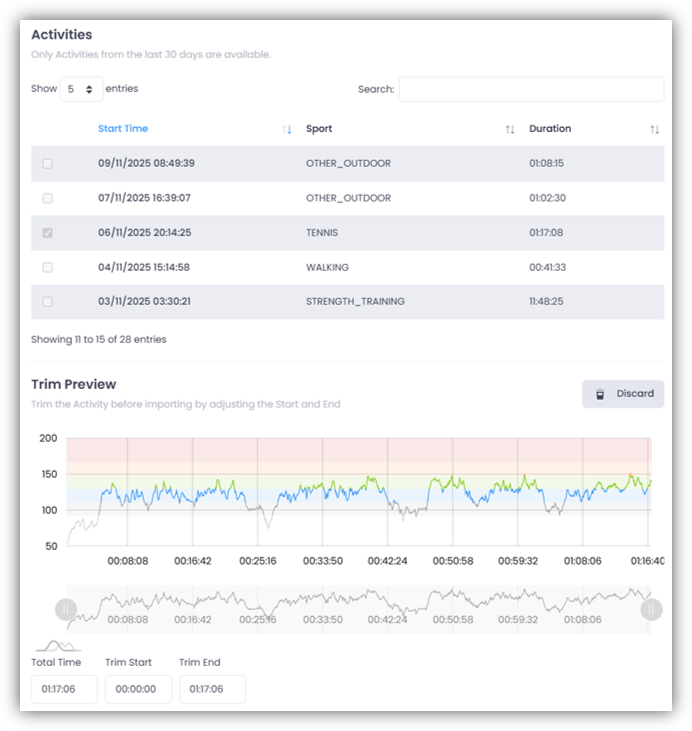
Go to the “Heart Rate” tab in an activity and click on “Import”. Select your provider at the top and click on “Update”. The list will show you the recorded activities from your provider. Please note that only data from the last 30 days is available. Select the desired activity and click on the “Download” button at the bottom.
You will then see the recorded heart rate curve for the selected activity. You can adjust the start and end points as required. Finally, click on “Import” to transfer the data.
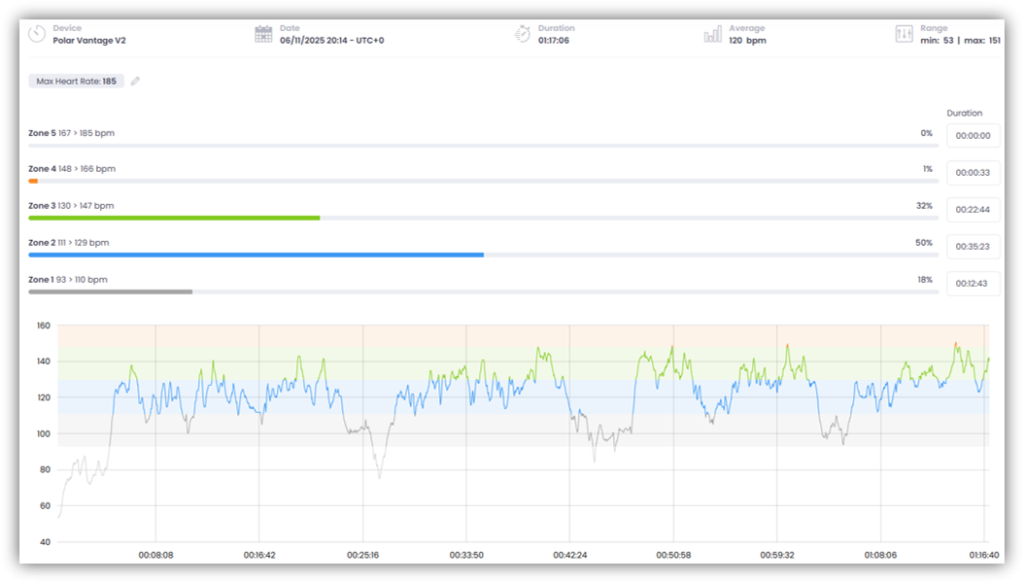
Now you can see how long your heart rate was in each of the five zones. The duration for each zone is displayed. The average, lowest, and maximum heart rate for this activity are also shown.
The “Total Trimp” is also calculated based on this data.