
We offer you the option of importing the attendance list from Force8 Coach into the National Database Sport (NDS) from Youth + Sport. This means that it is sufficient to keep a clean attendance list in Force8 Coach. There is no need to keep an additional list in the NDS.
Follow this step-by-step guide to import your attendance list from Force8 Coach into the NDS.
Step 1: Set up the detailed configurator (Club Admin only)
To query the Y+S number of the coaches, the club admin must create a field for the Y+S number under CLUB – ADMINISTRATION – FIELDS CONFIGURATOR. We explain how new fields can be created in the fields configurator in the article Fields configurator.
All coaches can then enter their “Y+S person number” themselves in their “Coach profile” under “Club Details”. This information is mandatory for the attendance control export.

Step 2: Activities and participants
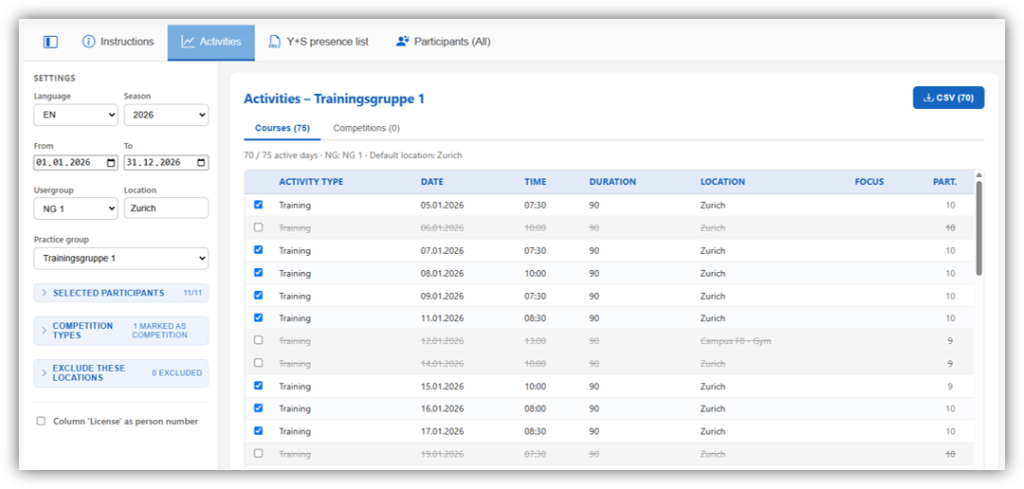
In the menu, click on ANALYSIS – ADVANCED and then on Y+S EXPORT. On the left, select the desired season, time period, your user group, and the desired practice group. Since the export file requires a location, you can enter one here if it isn’t already stored in the activities.
Switch to the “Activities” tab. There, you’ll see a list of all activities for the selected practice group during the chosen time period. You can see at a glance which activities are still missing a location. The last column also shows the number of participants per activity. You can exclude individual activities from the export by unchecking the boxes next to them.
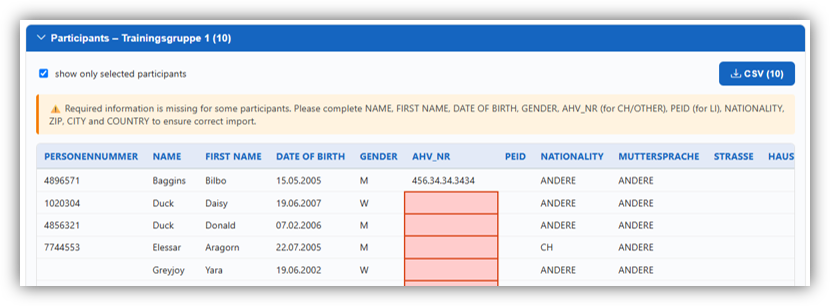
Below the list of activities, you can open the “Participants” table. This table contains all participants in the selected practice group. Fields marked in red indicate which participants are missing required information. If required fields are left blank, you will not be able to export the data later. If necessary, you can remove individual athletes from the selection using the left column.
Both lists can be exported as CSV files so that the activities and participants can then be imported into the NDS. This step is only necessary if the activities and participants have not already been defined in the NDS.
In addition, a list of all coaches in this practice group is displayed. This allows you to see at a glance whether any required information is still missing for the coaches, which will be needed later for the presence list export.
You also have access to an “Editable Table”. There, you can manually adjust certain details, such as the start time or duration. The updated values are then automatically transferred to the “Y+S presence list”.
Step 3: Export presence list
Switch to the “Y+S presence list” tab at the top. All those present (participants and coaches) for all activities are displayed here.
All participants and coaches who have the event status “available” in the respective activity are marked as present. In the case of a session with several activities, the status of the first activity is used.
If you see fields marked in red, you must fill them in before exporting the list, otherwise, the import into the NDS will not work.
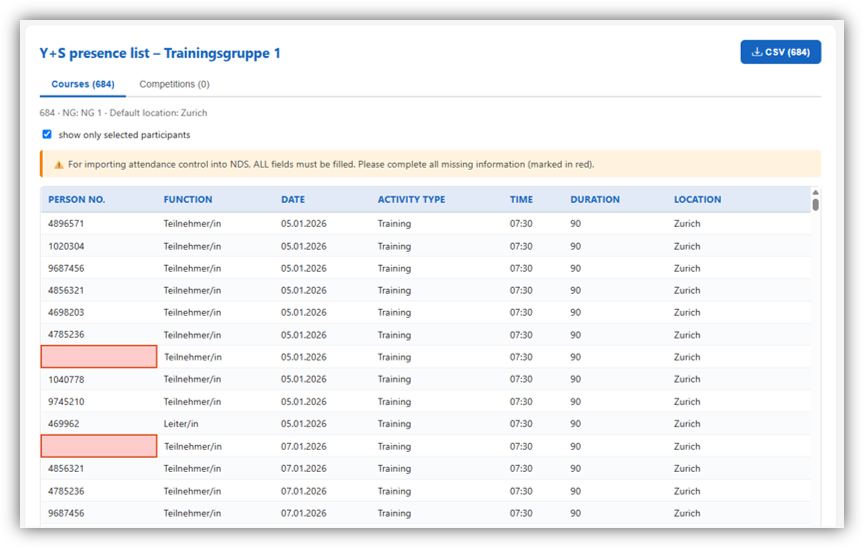
Click the “CSV Download” icon. A CSV file named “awk_Name of the practice group” will be saved to your computer.
Step 4: Import the attendance control into the NDS
In the NDS, go to the desired course and select the “Attendance monitoring” tab at the top. Under “Actions”, click on “Import attendance control”. In the window that appears, you can then upload the file previously exported from Force8 Coach and click on “Import”.
The import is now complete and the attendance control in the NDS is now synchronized with the data from Force8 Coach.