
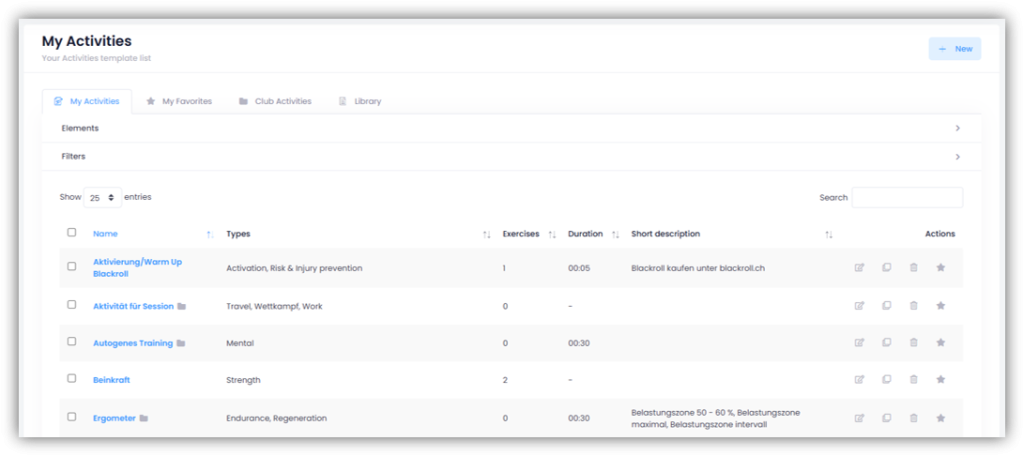
Under TRAINING – TEMPLATES – ACTIVITIES you have four different tabs at the top.
My Activities
Add activity
Click on “+ New” on the right and give the activity a name. If desired, you can add a description. It is mandatory to select an FTEM level. If you are working without FTEM levels, select all. All terms entered here will later be taken into account in the search function and you can filter by the corresponding FTEM levels.
If you check the “Add to club activities” box, the activity will be made available to all other club coaches and athletes. Then click on “Next”.
Here you define the various properties of the activity. Select the mandatory types and optional methods. Also decide whether you would like to obtain feedback from the athletes (more about this in article 6) Athlete Feedback).
For the additional properties, you must move the slider to the right to activate these properties. Save your entries by clicking on “Save”.
The activity has been created and you are now directly in this activity.
- In the “Details” tab you can customize the name, (short) description, location and total time.
- In the “Exercises” tab you can add exercises to an activity (more on this below).
- In the “Properties” tab you can set and edit the properties of the activity.
- In the tab “Elements” you can see the element tree of your sport. Link the activity to the corresponding elements by clicking the checkbox(es) next to the elements you want to assign to the activity.
Add exercises to an activity
If you are in an activity click on the “Exercises” tab. Click on “+ New Exercise“. Check the boxes to the left of the exercises you want to add to this activity. You can also search for terms in the search box or filter by items above or use exercise filters. Click on “Add“.
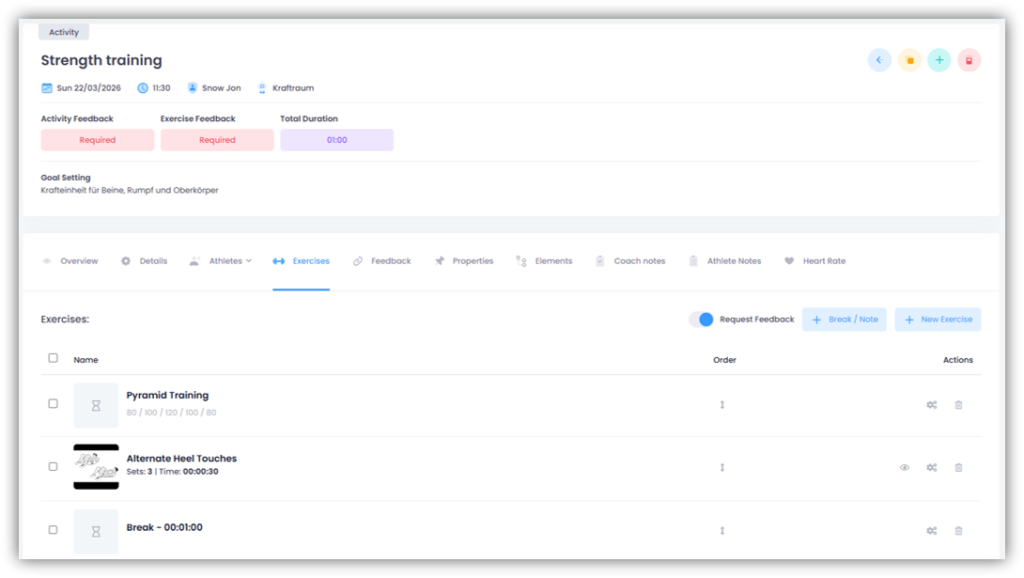
Move the slider at “Request Feedback” to the right to ask the athletes for feedback on the exercises. Read more in article 6) Athlete Feedback.
Customizing the properties of exercises
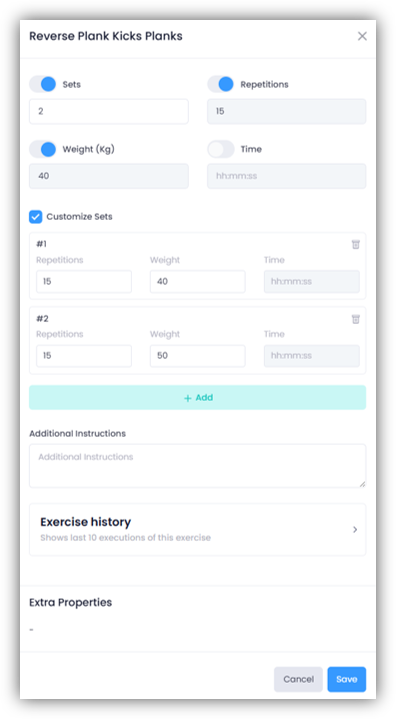
Click the “gear icon” to the right of an exercise. In the window that opens, you’ll see the four predefined properties—Sets, Repetions, Weight, and Time at the top. Slide the sliders for the properties you want to use and enter the corresponding values.
If you select Sets and at least one other property, the “Customize Sets” option will appear.
If you activate this, you can set the properties individually for each set.
Further down, in the “Extra Properties” section, you can also activate your custom properties using the respective slider. Finally, click “Save” to apply your changes.
If you click on “Exercise history”, you can view past entries for this exercise. When you select the desired athlete, you’ll see statistics for the last ten sessions of this exercise, including the number of sets, repetitions, and weight used.
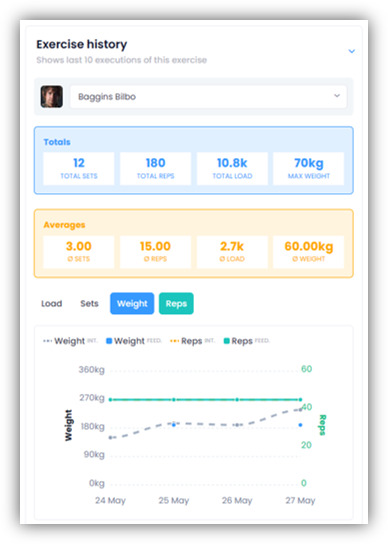
Below, you’ll find a detailed list of all ten executions. You’ll also see the differences between each execution. You can also carry over the values from a previous execution (sets, reps, weight, and time) into your new workout plan. To do this, click “Copy” next to the desired execution. You can then choose between:
- “Intended” – your preset values
- “Feedback” – the values actually reported by the athlete
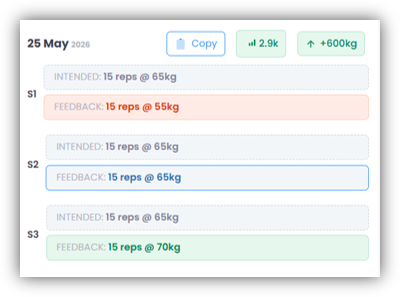
The selected values are applied automatically, but can be customized at any time.
Add breaks / notes
Click on “+ Break / Note” to add a break or a note. To add a break, enter a duration in the window that appears and confirm by clicking “Save”. For a note, you can choose any title. A duration is not required. Simply enter the information in the comment field. With a note, you can, for example, record instructions for performing individual exercises (e.g., pyramid training, circuit stations, etc.). Confirm each entry by clicking “Save”.
Remove exercises / Edit order
To delete an exercise, select the corresponding checkboxes to the left of the exercises and click on the “trash can icon” at the bottom.
To change the order, click on the “arrow symbol” in the “Order” column and move the exercises or breaks to the desired position.
Delete activity
Click on the “trash can icon” on the right side of the activity row under “Actions” and confirm by clicking on “Delete” in the window that appears.
My Favorites
Under “My Favorites” you can see all the activities that you have marked with a star either under “My Activities” or “Club Activities” (click on the “star symbol” on the right side of the corresponding activity under “Actions“). This way you have all your favorite activities together.
Club Activities
In “Club Activities” you can see all the activities that you or other coaches of your club have added and shared as club activities.
Library
In “Library” you can see all activities that either Force8 or your federation have added to the system and made available to you. Click on the “eye icon” under “Actions” to get an overview of the activity. If you want to add the activity to “My Activities“, click on the “+ symbol“.