
In the training planning you have several options to request feedback from your athletes. You can request feedback on individual exercises, activities or sessions.
Exercise Feedback
Request Feedback
- If you have scheduled an activity, go to the “Exercises” tab and move the slider “Request Feedback” to the right.
- If you have scheduled a session, go to the “Activities” tab and move the slider in the “Exercise Feedback” column to the right. This will activate the feedback for all exercises of this activity.
Athletes can now enter their feedback on your planned exercises on their platform after the training. If you have selected and specified certain properties (e.g. number of repetitions, weight, etc.) then the athletes can indicate in the feedback whether they have met your specifications or not. They can leave the values of the properties as they are or enter the values they actually performed.
View Feedback
- If you have scheduled an activity go to the “Feedback” tab.
- If you have scheduled a session go to the “Feedback” tab and then click on the desired activity and go to the “Feedback” tab again.
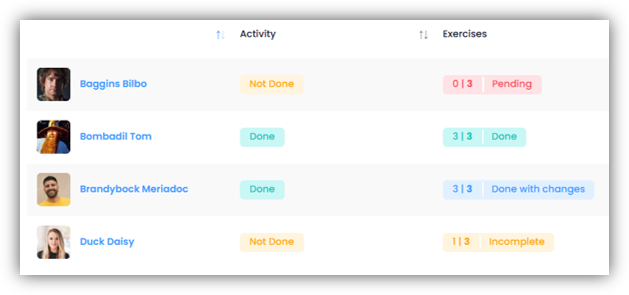
Here you have a list of your athletes. In the column “Exercises” you can see which athletes have already given feedback on your exercises.
- “Pending” means that the athlete has not yet given feedback on the exercises.
- “All Done” means that the athlete has marked all the exercises as done and if you have defined properties he has performed everything according to your specifications.
- “Done with changes” means that the athlete has marked all the exercises as completed, but has changed your predefined properties.
- “Incomplete” means that the athlete has not yet given feedback on all the exercises.
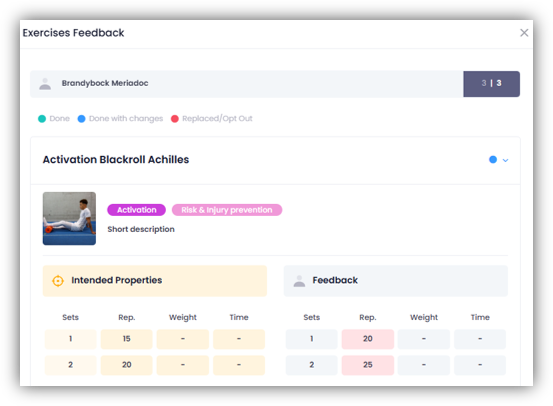
If you click on the comment in the “Exercises” column, you can compare the specified characteristics of the exercise with the athlete’s feedback.
Any discrepancies between your specifications and the feedback are highlighted in color. If the athlete has left a comment on the exercise, you can also view it here.
Activity Feedback
Request Feedback
- If you have scheduled an activity, go to the “Properties” tab. Move the slider at “Request RPE” to the right and enter a designated RPE value (scale 0-10) if needed and click “Save“.
- If you have scheduled a session, go to the “Activities” tab and move the slider in the “Activity Feedback” column to the right. This will activate feedback for all activities in that session.
Athletes can now enter their feedback on your scheduled activities on their platform after the training. Besides the duration, they can also enter an RPE value as well as a comment.
View Feedback
Activities
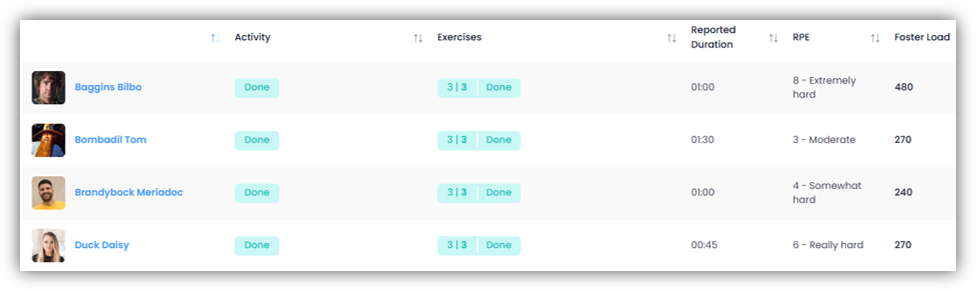
In the scheduled activity, go to the “Feedback” tab. Here you have a list of your athletes. You can see for all athletes their reported duration, RPE value and Foster Load. If you click on “Done” in the “Activity” column, you can also view the athletes’ comments on the activity.
Sessions
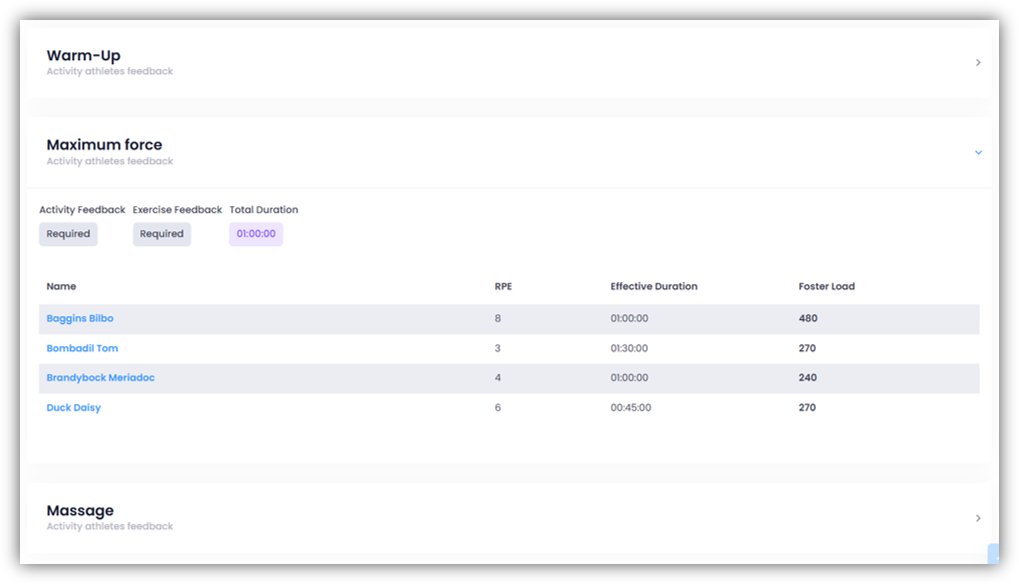
Go to the “Feedback” tab in the scheduled session. Click on the arrow icon on the far right of the desired activity. You will now see a list of your athletes and their feedback on this activity.
Session Feedback
Request Feedback
Go to the “Properties” tab in the scheduled session. Move the slider at “Request RPE” to the right and enter a designated RPE value (scale from 0-10) if needed and click “Save“.
Athletes can now enter their feedback on your planned session on their platform after the training. Besides the duration, they can also enter an RPE value and a comment.
View Feedback
In the scheduled session, go to the “Feedback” tab. Click on the arrow icon at the far right of “Session“. You will now see a list of your athletes and their feedback on this session.

View heart rate information
Click on the “Heart Rate” tab to view your athletes’ heart rate information. Your athletes can upload data from external providers (Polar, Garmin or Suunto) for an activity. This will calculate the “Total Trimp” for this athlete.
Click on the name of an athlete to see all the information about this activity.
Pending Feedback
Under TRAINING – PENDING FEEDBACK you have an overview of all pending feedbacks of your athletes. Click on a name to see for which activities/exercises there are still open feedbacks.
