
On the left, under “Settings”, select one or more athletes you want to analyze, as well as the desired time period. Under “Exclude Types”, you can exclude certain types from the analyses. An “Athlete Level” must be selected only for the “ACWR” evaluation. Risk zones are defined differently depending on the level.
Alerts
This section displays warnings at a glance when an athlete’s values fall outside the normal range. Click “Critical” or “Warning” to view the affected athletes. Click “Details” to view individual athletes and their exact values.
Load (ATL/CTL/ACWR)
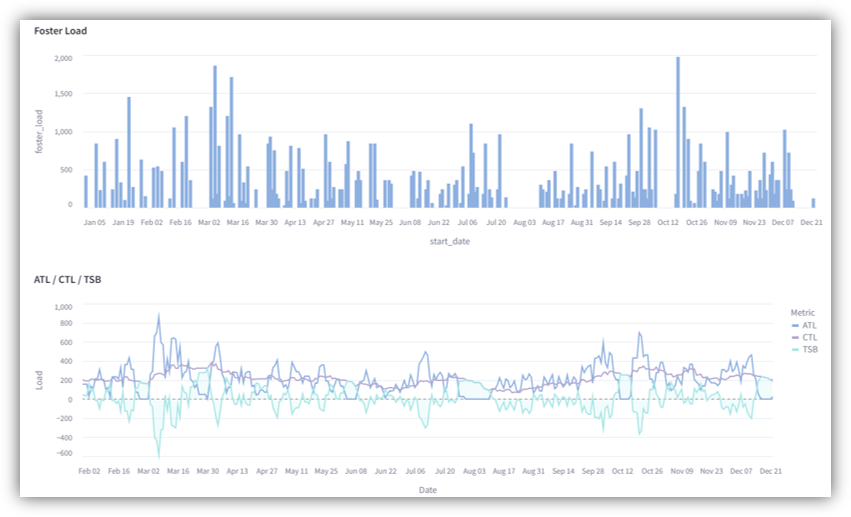
Under “Foster Load”, you’ll find an overview of your athletes’ reported Foster Load. The graph displays the total Foster Load for each day. If you hover your mouse over a bar in the graph, the day and the exact Foster Load will be displayed.
Under “ATL / CTL / TSB”, you’ll see the three parameters: ATL (Acute Training Load), CTL (Chronic Training Load), and TSB (Training Stress Balance). These parameters help you monitor and adjust training load, recovery, and fitness level. You can view the exact values by hovering your mouse over them.
In addition, the “ACWR—Acute Chronic Workload Ratio” is displayed. At the very bottom, you can view explanations for all these values.
Furthermore, your athletes’ daily values are displayed under “Health Metrics”. The graph shows how reported motivation, mood, and sleep quality have changed over your defined time period. Reported injuries, pain, and illnesses are also visible under “Pain, Sickness, and Injury”.
Using the “Effective values” slider, you can choose to display the effective measured values instead of the z-standardized values.
Activities
Here you can see how often each type was covered (number of training hours).
You have the option to group multiple types into a cluster. To do this, click “Clusters” in the left-hand menu and then click “Add Cluster”. Enter a name, select a color, and select all the types you want to include in this cluster. To ensure that the clusters are displayed in the reports, the “Use Clusters” toggle must be enabled.
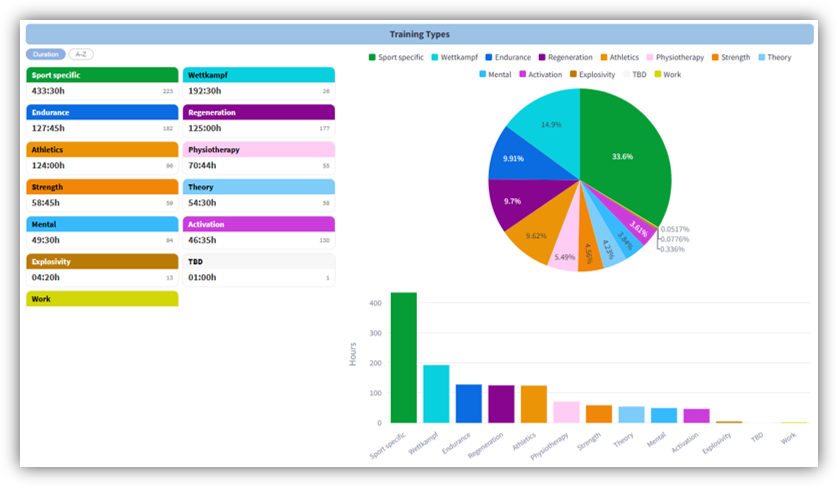
Further down, in the “Combination of Types and Methods” section, you can view the various combinations of types and methods. An “*” indicates that no specific training method was selected for those trainings.
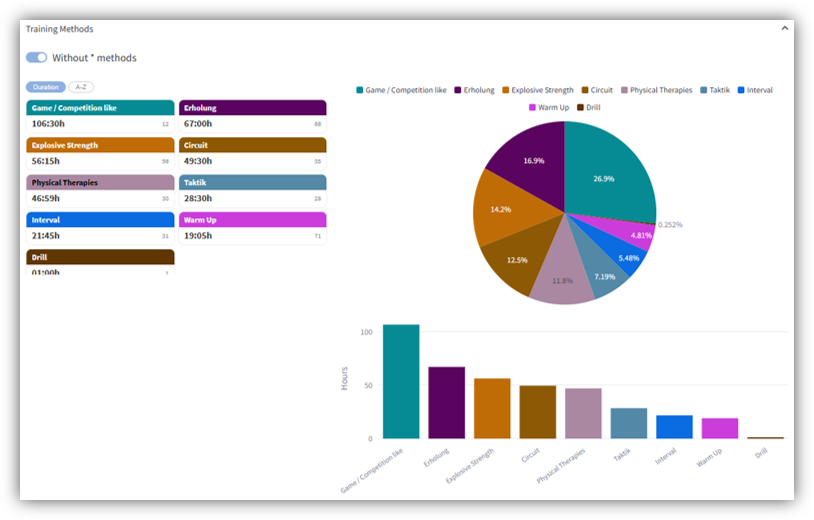
Under “Training Methods”, you can view all the training methods that were used. An “*” indicates that no specific training method was selected for those trainings. Using the “Without * methods” slider, you can hide these trainings so that the graph shows only the training methods that were actually used.
Week/Months
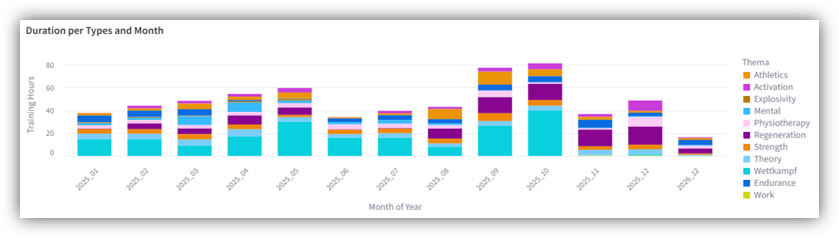
Here, you can view the number of hours completed per week or month in a bar chart organized by type. Click on a type in the legend on the right to display only that specific topic.
If the “Weekly View” is enabled, the types completed for each individual day are displayed further down in the “Chart per day” section.
In the “Chart/Duration per method” section, all methodes are broken down by week or month, depending on the setting of the “Monthly View” slider. Using the “Without * methods” slider, you can hide trainings that do not include a selected methode. This ensures that the chart displays only the methodes that were actually used.
Compare
Select up to four athletes you want to compare. Alternatively, you can select the same athlete multiple times to compare their metrics across different time periods.
At a glance, you can see the total number of activities and the total training time for the athletes during the selected time periods. You’ll also see a detailed breakdown by type. The graphs can be downloaded as PNG files.
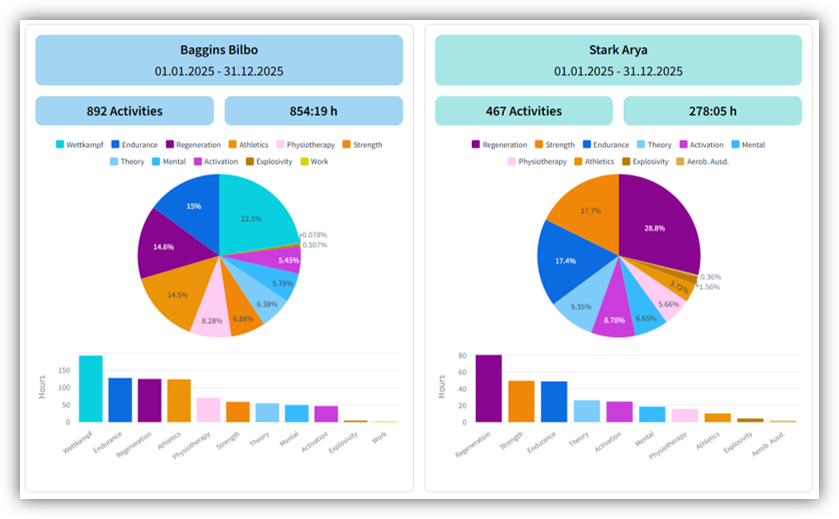
If you slide the “Show numbers instead of charts” slider to the side, the exact numbers will be displayed instead of individual charts.
Properties
If you’ve added additional properties for activities or exercises, you can analyze them here.
In the “Activity Properties” tab, select the property you want to analyze. For the selected property, the system displays how often it was used in activities. You also have access to a weekly overview and a breakdown by type.
In the “Numeric Values” tab, you can analyze numeric properties based on a selected filter.
If you’re working with exercises that use predefined properties, you’ll find the corresponding analyses in the “Exercise Analysis” tab. Select the desired property at the top to view the total count per exercise. A comparison between the planned values and the actual values (based on athlete feedback) is also displayed.
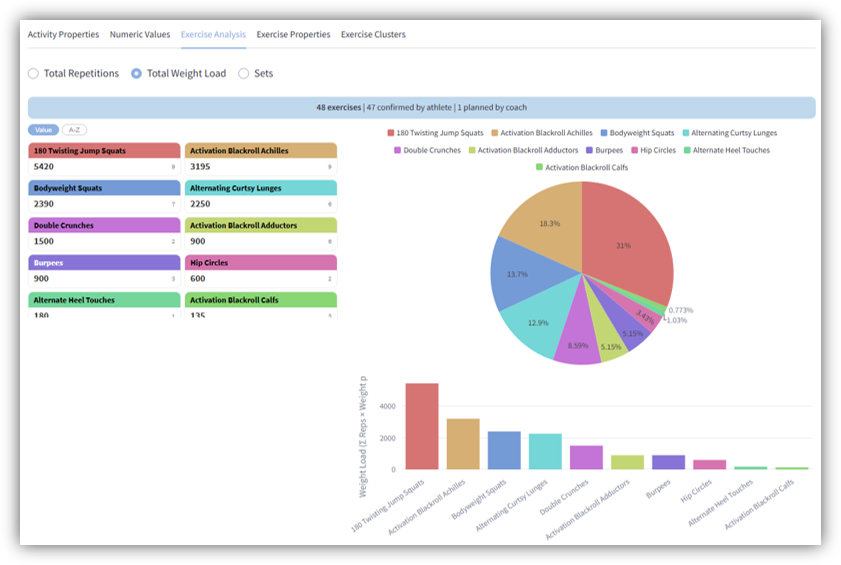
In the “Exercise Properties” tab, you can analyze the custom properties that have been added to the exercises.
Under “Exercise Clusters”, you can group multiple exercises into a single cluster. In the various analyses, the results are then displayed at the cluster level. Click “Add Cluster” to create a new cluster. Enter a name, select a color, and select all the exercises you want to assign to this cluster.
Planning
Here you can view the selected athlete’s calendar in weekly or monthly view. If the athlete is scheduled for multiple clubs or federations, the respective events are highlighted in different colors.